When troubleshooting issues in Replicated Vendor Portal, KOTS Admin Console or Enterprise Portal, our team may ask you to provide a HAR (HTTP Archive) file. A HAR file records all the network requests made by your browser, including request and response headers, payloads, and timings.
What is a HAR File?
- HAR (HTTP Archive) is a JSON-formatted log of network interactions between your browser and a server.
- It contains details like:
- URLs being requested
- Request and response headers
- Request body and response data
- Cookies
- Timing information (DNS lookup, SSL, waiting time, etc.)
How to Generate a HAR File
Google Chrome (and Chromium-based browsers like Edge, Brave)
- Open Chrome and go to the page where the issue occurs.
- Press F12 (or right-click → Inspect) to open Developer Tools.
- Go to the Network tab.
- Check Preserve log and Disable cache.
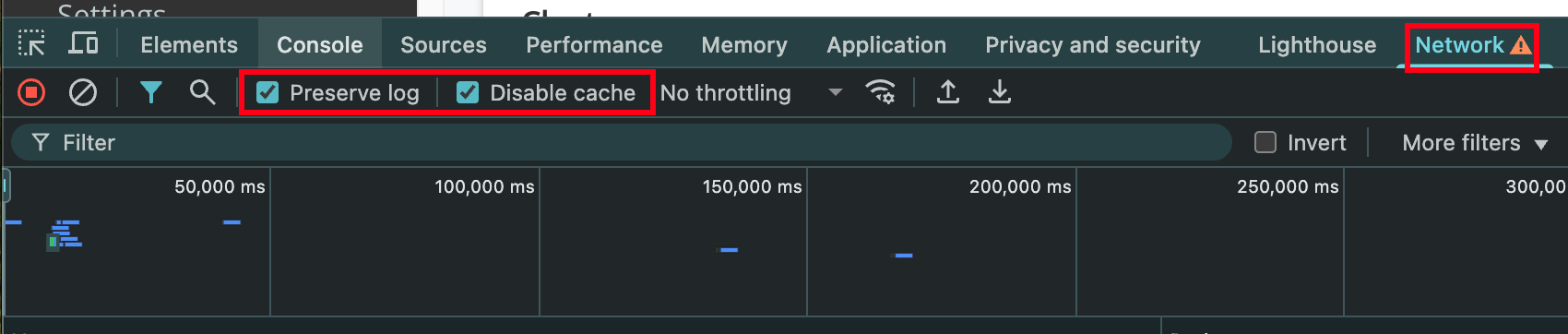
- Reproduce the issue:
- Reload the Vendor Portal page or re-trigger the failing action in the Admin Console.
- Choose Export HAR

- Save the .har file to your computer
- Compress it into a .zip file and share it with Replicated